VoiceChannels
  • Home
  • Features
  • Docs
  • Plans
  • Change log
Invite
✨ New Feature
Introducing the VoiceChannels Dashboard — a brand new way to customize your server experience! Edit channel interfaces, manage settings, and fine-tune every detail, all from one place.

Open Dashboard
  • Overview

Getting started

  • Join to Create
  • Setup

Configuration

  • Enable Features
  • Logs Channel
  • Event Check-in
  • Name Placeholders
  • Disable AutoStatus

How-to guides

  • Private Rooms
  • Numbered Rooms
  • Event Attendance

Resources

  • Comparison
Docs menu
  • Overview

Getting started

  • Join to Create
  • Setup

Configuration

  • Enable Features
  • Logs Channel
  • Event Check-in
  • Name Placeholders
  • Disable AutoStatus

How-to guides

  • Private Rooms
  • Numbered Rooms
  • Event Attendance

Resources

  • Comparison
Docs/Getting started

How to set up temporary voice channels in Discord


  • Enter your discord server and type /setup in any channel.

    COMMANDS MATCHING /setup
    VoiceChannels
    /setup
    Set up and configure VoiceChannels for this server.
    VoiceChannels


Step 1


Select ( ➕ ∙ Create Master Channel ) menu to create a new master channel.
  • What is a Master Channel?
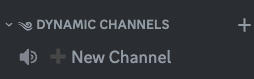
    • A voice channel that generate dynamic temporary voice channels, his name will be ( ➕ New Channel )

  • How i generate new temporary dynamic channel?
    • Simply just join the Master Channel ( ➕ New Channel ) and you will be automatically moved to new temporary voice channel

iNewLegend
iNewLegend used /setup
VoiceChannels
VoiceChannelsAPPToday at 9:13 AM
Thumbnail
🛠 Setup VoiceChannels
Discover the limitless possibilities of VoiceChannels! Customize and optimize your server to perfection. Master Channels are dynamic voice channel generators, each with its own unique configuration. Our badwords feature enables guild-level configuration for limiting dynamic channel names. Current master channels: None Server Badwords: None Server Voice Role: None Server Verified Roles: @everyone (default) Server Staff Roles: None
Master Channels
New Master Channel
👁️Only you can see this • Dismiss message

After clicking the menu, you will see the available options:

✨
Dynamic Channel (V3)
Recommended - enhanced dynamic channels with more features
➕
Dynamic Channel (V2)
Classic dynamic voice channels
📈
Auto-Scaling Channel
Automatically scales based on member count
🎮
Team Lobby
Split one channel into team rooms or groups

Select Dynamic Channel (V3) - the newest room panel, with every feature.


Set default channel's name template

Edit by pressing
#️⃣ Edit Channel Name
button or continue with default = {user}'s channelby pressing Next ▶

  • What is Default Channel's Name Template?
    • Its the name that will be used to create the temporary voice channels, that are created by joining this Master Channel.

iNewLegend
iNewLegend used /setup
VoiceChannels
VoiceChannelsAPPToday at 9:13 AM
Thumbnail
Step 1 - Set Dynamic Channels Template Name
You can specify a default name for dynamic channels that will be used when they are opened. Current template name: {user}'s Channel You can keep the default settings by pressing ( Next ▶ ) button. Not sure how it works? Check out the explanation.
👁️Only you can see this • Dismiss message

  • What is {user}?
    • Its name Placeholder that will be used to create the temporary voice channels, that are created by joining this Master Channel.
    • Assume your name in discord is Bob, And the placeholder is: {User}'s Channel by joining to the Master Channel newly created temporary channel's name will be Bob's Channel

Set dynamic channels name
This form will be submitted to Vertix. Do not share passwords or other sensitive information.

Press

Submit
to proceed.


iNewLegend
iNewLegend used /setup
VoiceChannels
VoiceChannelsAPPToday at 9:35 AM
Thumbnail
Step 1 - Set Dynamic Channels Template Name
You can specify a default name for dynamic channels that will be used when they are opened. Current template name: {user}'s Office You can keep the default settings by pressing ( Next ▶ ) button. Not sure how it works? Check out the explanation.
👁️Only you can see this • Dismiss message

Then press Next ▶ to continue next step.


Step 2


Set temporary dynamic channel's button interface

Click on (
) down arrow to edit or continue with ( default = All Buttons Enabled ) by pressing Next ▶

iNewLegend
iNewLegend used /setup
VoiceChannels
VoiceChannelsAPPToday at 9:35 AM
Thumbnail
Step 2 - Dynamic Channels Setup
Setup dynamic channel management interface. 🎚 Buttons Interface
  • ( ∙ Rename )
  • ( ∙ User Limit )
  • ( ∙ Access )
  • ( ∙ Invite )
  • ( ∙ Privacy )
  • ( ∙ Region )
  • ( ∙ Edit Primary Message )
  • ( ∙ Clear Chat )
  • ( ∙ Reset )
  • ( ∙ Transfer )
  • ( ∙ Templates )
  • ( ∙ Status )
  • ( ∙ Knock )
  • ( ∙ LFM )
  • ( ∙ Claim )
⚙️ Configuration
@ ∙ Mention user in primary message: 🟢∙On ⫸ ∙ Auto save dynamic channels: 🔴∙Off 📢 ∙ Automatic channel status: 🟢∙On ▥ ∙ Auto create panel channel: 🟢∙On
You can keep the default settings by pressing ( Next ▶ ) button. Not sure what buttons do? check out the explanation.
Embed
Buttons In This Set
Rename
Limit
Access
Invite
Privacy
Region
Edit Primary Message
Clear Chat
Reset
Transfer
Templates
Status
Knock
LFM
Claim
👁️Only you can see this • Dismiss message

Select buttons you wish to enable in your temporary dynamic channels that created by joining this Master Channel.

What the buttons do?

  • Rename Channel
  • User Limit
  • Clear Chat
  • Permissions
  • Invite
  • Knock
  • Privacy State
  • Region & Bitrate
  • Edit Primary Message
  • Channel Templates
  • Channel Status
  • Reset Channel
  • Transfer Channel
  • Looking for Members
  • Claim Channel

Select the options that suit you, then click Next ▶ to continue.


iNewLegend
iNewLegend used /setup
VoiceChannels
VoiceChannelsAPPToday at 9:35 AM
Thumbnail
Step 2 - Dynamic Channels Setup
Setup dynamic channel management interface. 🎚 Buttons Interface
  • ( ∙ Rename )
  • ( ∙ User Limit )
  • ( ∙ Access )
  • ( ∙ Invite )
  • ( ∙ Privacy )
  • ( ∙ Region )
  • ( ∙ Edit Primary Message )
  • ( ∙ Clear Chat )
  • ( ∙ Reset )
  • ( ∙ Transfer )
  • ( ∙ Templates )
  • ( ∙ Status )
  • ( ∙ Knock )
  • ( ∙ LFM )
  • ( ∙ Claim )
⚙️ Configuration
@ ∙ Mention user in primary message: 🟢∙On ⫸ ∙ Auto save dynamic channels: 🔴∙Off 📢 ∙ Automatic channel status: 🟢∙On ▥ ∙ Auto create panel channel: 🟢∙On
You can keep the default settings by pressing ( Next ▶ ) button. Not sure what buttons do? check out the explanation.
Embed
Buttons In This Set
👁️Only you can see this • Dismiss message


Step 3


Set verified roles

Or continue with ( default = @everyone recommended! )

iNewLegend
iNewLegend used /setup
VoiceChannels
VoiceChannelsAPPToday at 2:35 PM
Thumbnail
Step 3 - Select Verified Roles
Verified roles are the roles that the privacy buttons work on. When a channel owner presses Private or Hidden, the bot changes the permissions of these roles. They decide who can see the channel and who can join it. ⚠️ Not sure what to pick? Keep @everyone. It is the right choice for almost every server. When you need a different role Only if new members cannot see your channels until somebody gives them a role. Example: a new member joins your server and sees nothing until they get the Member role. If verified roles stay @everyone, a public dynamic channel shows up for that new member too. Pick Member instead, and only members who passed your gate can see and join. 🛡️ Verified Roles
None
Still not sure? check out the explanation. You can keep the default settings by pressing ( ✓ Finish ) button.
👁️Only you can see this • Dismiss message


Select Verified Roles

Bots3
Developer3
Manager3
MEE61
Support0

Do I need to set Verified Roles?

  • For most Discord servers, the @everyone role is sufficient. However, there are use cases where you may need additional roles. Here's an example:

    Let's say that by default, new members in your Discord server cannot see any Channels. If the owner of a dynamic channel sets their channel to be visible and Verified Role tagged as @everyone, new members will be able to join/see the channel, which may not be what you intended. This is where the Verified Role selection comes into play.
  • Tip: In most cases, one verified role is sufficient, and its recommended to use @everyone role.

Press ( ✔ Finish ) to generate your Master Channel.

iNewLegend
iNewLegend used /setup
VoiceChannels
VoiceChannelsAPPToday at 4:26 PM
Thumbnail
Step 3 - Select Verified Roles
Verified roles are the roles that the privacy buttons work on. When a channel owner presses Private or Hidden, the bot changes the permissions of these roles. They decide who can see the channel and who can join it. ⚠️ Not sure what to pick? Keep @everyone. It is the right choice for almost every server. When you need a different role Only if new members cannot see your channels until somebody gives them a role. Example: a new member joins your server and sees nothing until they get the Member role. If verified roles stay @everyone, a public dynamic channel shows up for that new member too. Pick Member instead, and only members who passed your gate can see and join. 🛡️ Verified Roles
@Trusted Members
Still not sure? check out the explanation. You can keep the default settings by pressing ( ✓ Finish ) button.
👁️Only you can see this • Dismiss message


Its done, the Master Channel created!


iNewLegend
iNewLegend used /setup
VoiceChannels
VoiceChannelsAPPToday at 4:26 PM
Thumbnail
🛠 Setup VoiceChannels
Discover the limitless possibilities of VoiceChannels! Customize and optimize your server to perfection. Master Channels are dynamic voice channel generators, each with its own unique configuration. Our badwords feature enables guild-level configuration for limiting dynamic channel names. Current master channels: #1 ▷ Name: 🔊 🆕 New Channel ▷ Channel ID: 1121075197588541460 ▷ Dynamic Channels Name: {user}'s Channel ▷ Buttons: , , , , , , , , , , , , , , ▷ Verified Roles: @Trusted Members Server Badwords: badword Server Voice Role: None Server Verified Roles: @everyone (default) Server Staff Roles: None
Master Channels
New Master Channel
👁️Only you can see this • Dismiss message


  • Create the dynamic channel


    Join Master Channel (➕ New Channel )
    s10
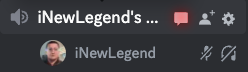
    You will be automatically moved to new Dynamic Channel (Temporary Voice Channel).

    Open the chat the interface by clicking on the message badge.
    s11
    On the right screen of the window you will see the interface.

    VoiceChannels
    VoiceChannelsAPPToday at 3:33 PM
    @iNewLegend
    ༄ Manage your Dynamic Channel
    Embrace the responsibility of overseeing your dynamic channel, diligently customizing it according to your discerning preferences. Please be advised that the privilege to make alterations is vested solely of the channel owner. ・ Name: iNewLegend's Office ・ User Limit: Unlimited ・ Privacy State: 🌐 Public ・ Region: Automatic 🎚 ・ Bitrate: 64 kbps
    Embed


...[email protected]Updated at 21/06/2023
Hi there👋

Found something wrong?
Do you have any questions?
Doesn't like something?

Join our discord server and let us know! or use /help command to send us feedback.

We value your opinion and are eager to take it into consideration!

Best regards ❤️
VoiceChannels Team.

← PreviousJoin to CreateNext →Enable Features

© 2023~2026 voicechannels.online

  • Privacy Policy
  • Terms Of Service
  • Refund Policy
  • Credits
  • Contact